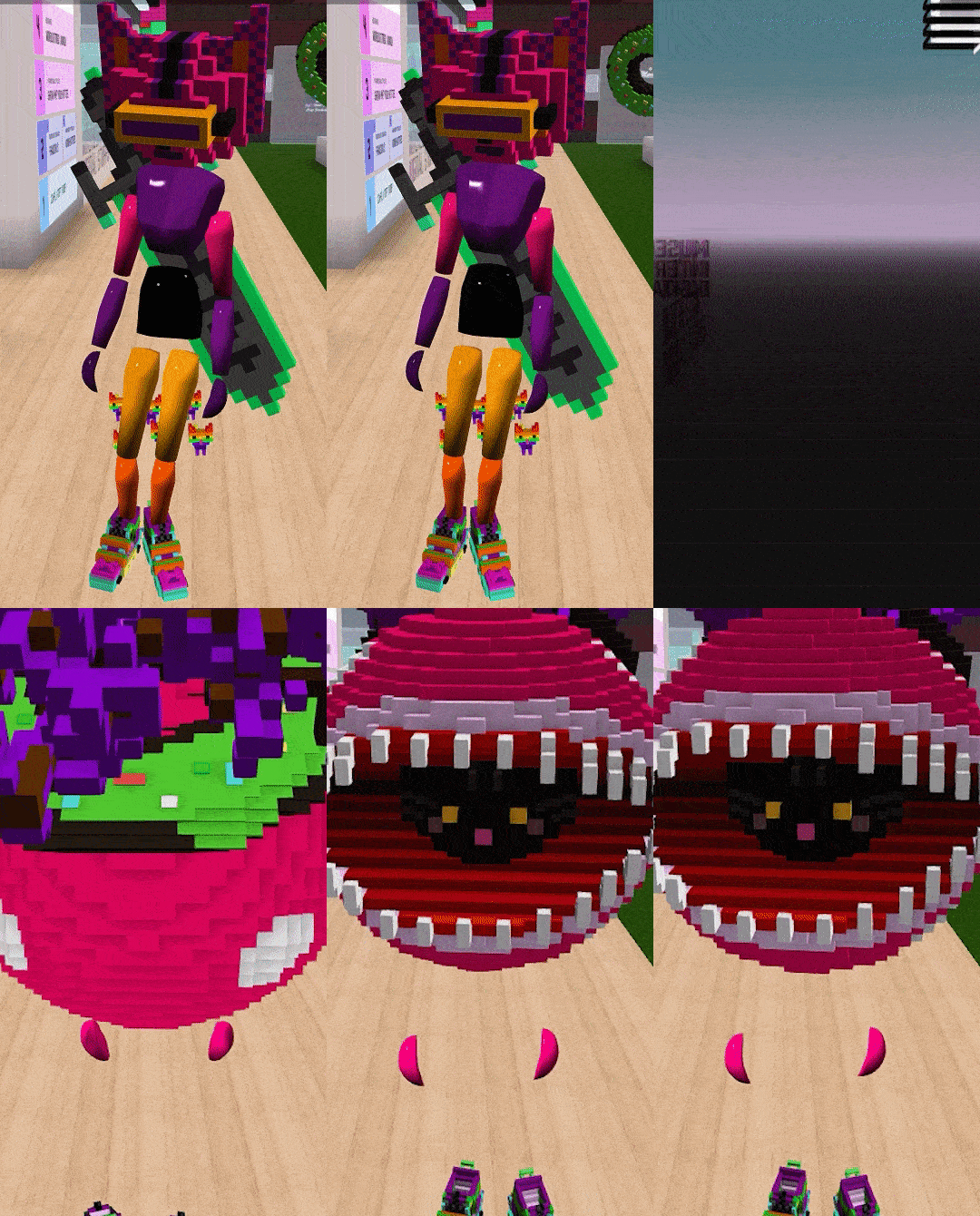
Costume tab
The Costumes tab is where you can decide what to wear and how to wear it.
Each costume can have different wearables, skin colors and have body parts hidden if you choose to do so.
1. Make a costume
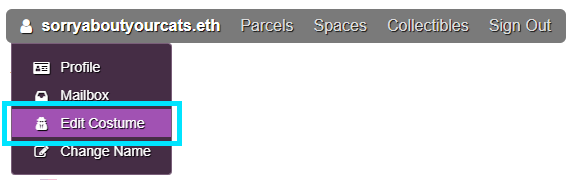
Hover over your name or wallet address on the top right bar, then select Edit Costume.
Add a costume by clicking the Add costume button.

Click the new costume to select it for editing.
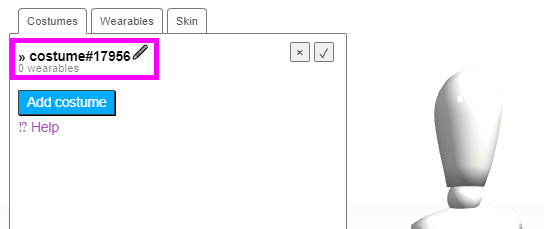
After selecting the costume, you should also see the Wearables & Skin tab.
You can rename the costume by clicking the 🖊, delete it with ✖ or make it the default with ✔.
2. Get a wearable
Do you have a wearable? Great! Skip to the next step.
Don't have a wearable? You can learn how to buy one from here, or learn how to make one here.
Cryptovoxels gives one wearable out for free - you should see this link on the bottom of the Wearables tab.
3. Dress up!
Each costume can have up to 12 wearables active. You can have many different costumes.
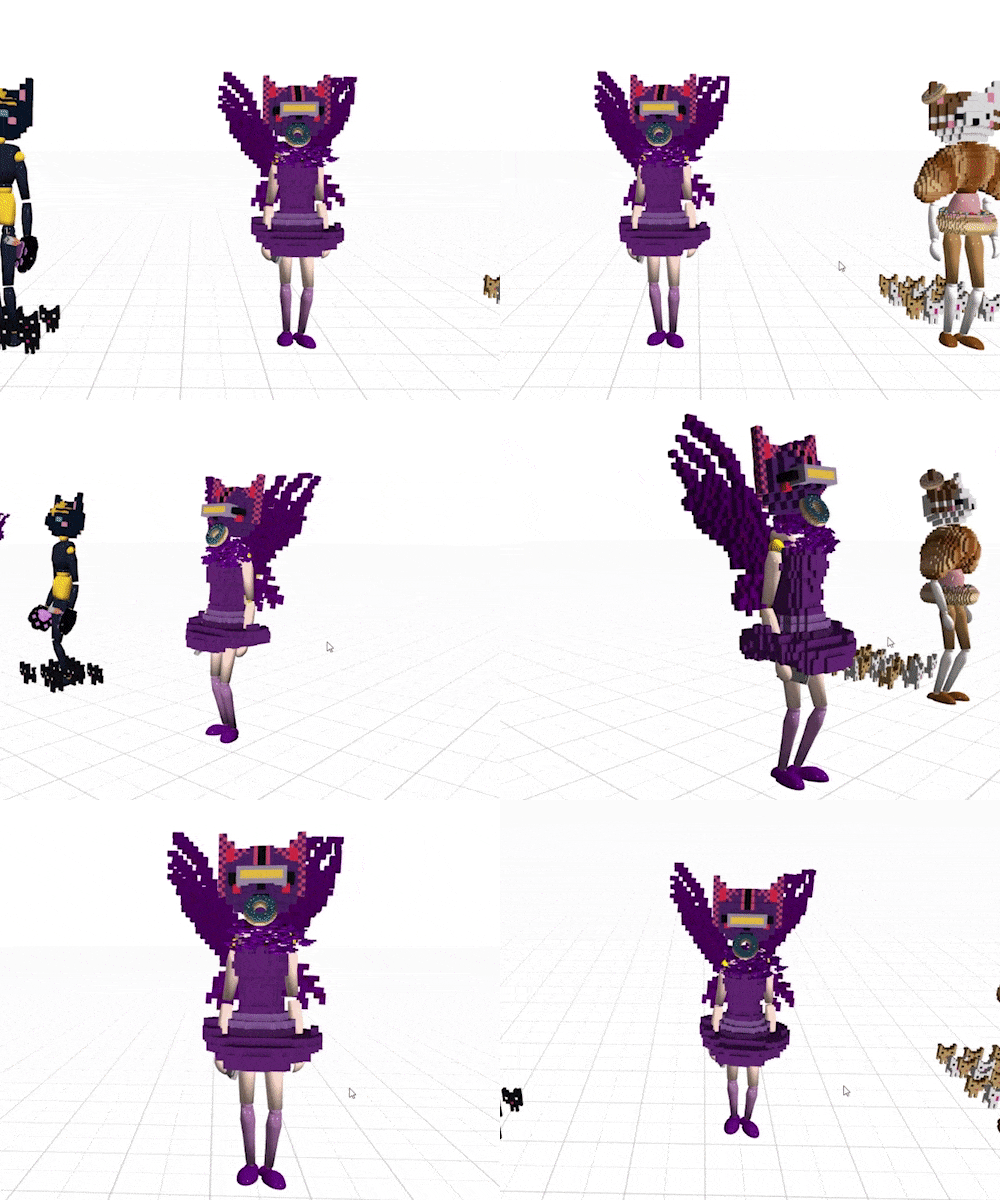
You can adjust the camera with the mouse. Left or middle click any empty area and the camera will rotate around your avatar. Right click will drag the camera up, down, left & right. The scrollwheel will zoom in and out.
Pick a wearable
Click the costume you want to edit. The costume should have » to the left of it. Click the Wearables tab.

Click the Select a Wearable... button.

Select a wearable from your list.
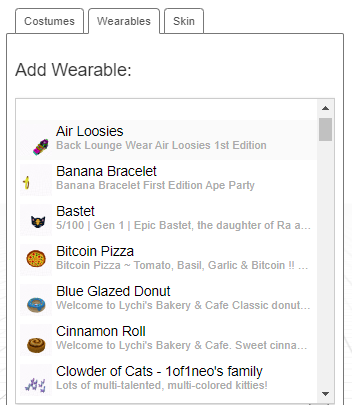
You can only place one of each wearable owned for your outfit, meaning if you own only one shoe, you can only place one shoe, and you would have to buy the other shoe in order to wear both. Prior to November 2021, you were able to place multiple (Matic) wearables of the same type even if you only own one of them - this has changed. If you have a costume set up beforehand, this will not be affected unless you modify the costume.
Place the wearable
After you select a wearable, you'll see it on your avatar.
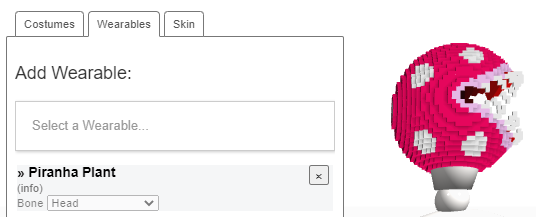
To place the wearable where you want it, select the Bone dropdown and choose the appropriate bone.

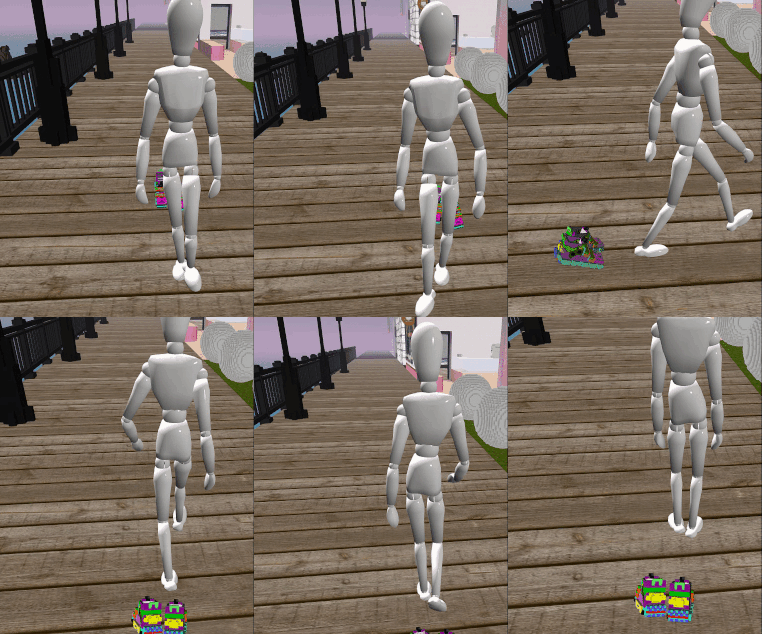
Attaching the wearable to the correct bone is especially important for animations, like walking or dancing. Don't forget to select the right bone!
Move, rotate & scale
You can adjust wearables either using the tools or editor.
You can quickly place your wearable with the tools, then use the editor to fine-tune it.
Using the tools
Click the wearable and the Position tool will activate - three arrows will appear.
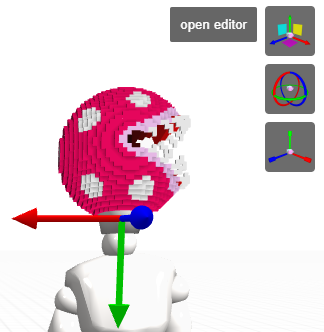
After selecting a wearable, there are three tools you can use:
- Position tool - Lets you move the wearable.

- Rotation tool - Lets you rotate the wearable.

- Scale tool - Lets you scale the wearable.

To use the Position tool, click and drag one of the arrows. 
To use the Rotation tool, click and drag one of the circles. 
To use the Scale tool, click and drag one of the squares. 
The tools are color coded - red is X, green is Y, blue is Z.
Using the editor
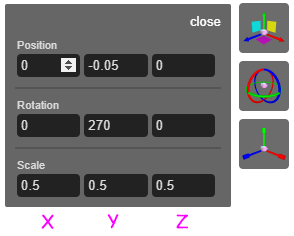
With the editor, you can input values for your wearable, which offers better precision. To use the editor, first select the wearable you want to edit, then click the open editor button.

After opening the editor, a table with 9 fields will appear, which allow you to type in values to adjust the position, rotation and scale of the wearable. There are up and down arrows when hovering over a box to do adjustments as well.
4. Change costumes
You can change costumes in the Cryptovoxels world and on the website.
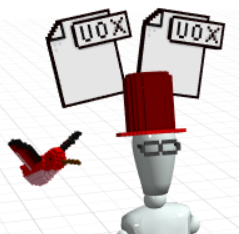
Changing in the Cryptovoxels world
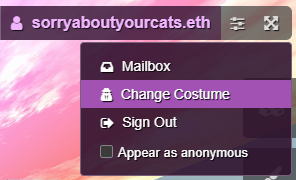
Hover over your name or wallet address on the top right bar, then select Change Costume.
Select a costume and your avatar will change instantly.
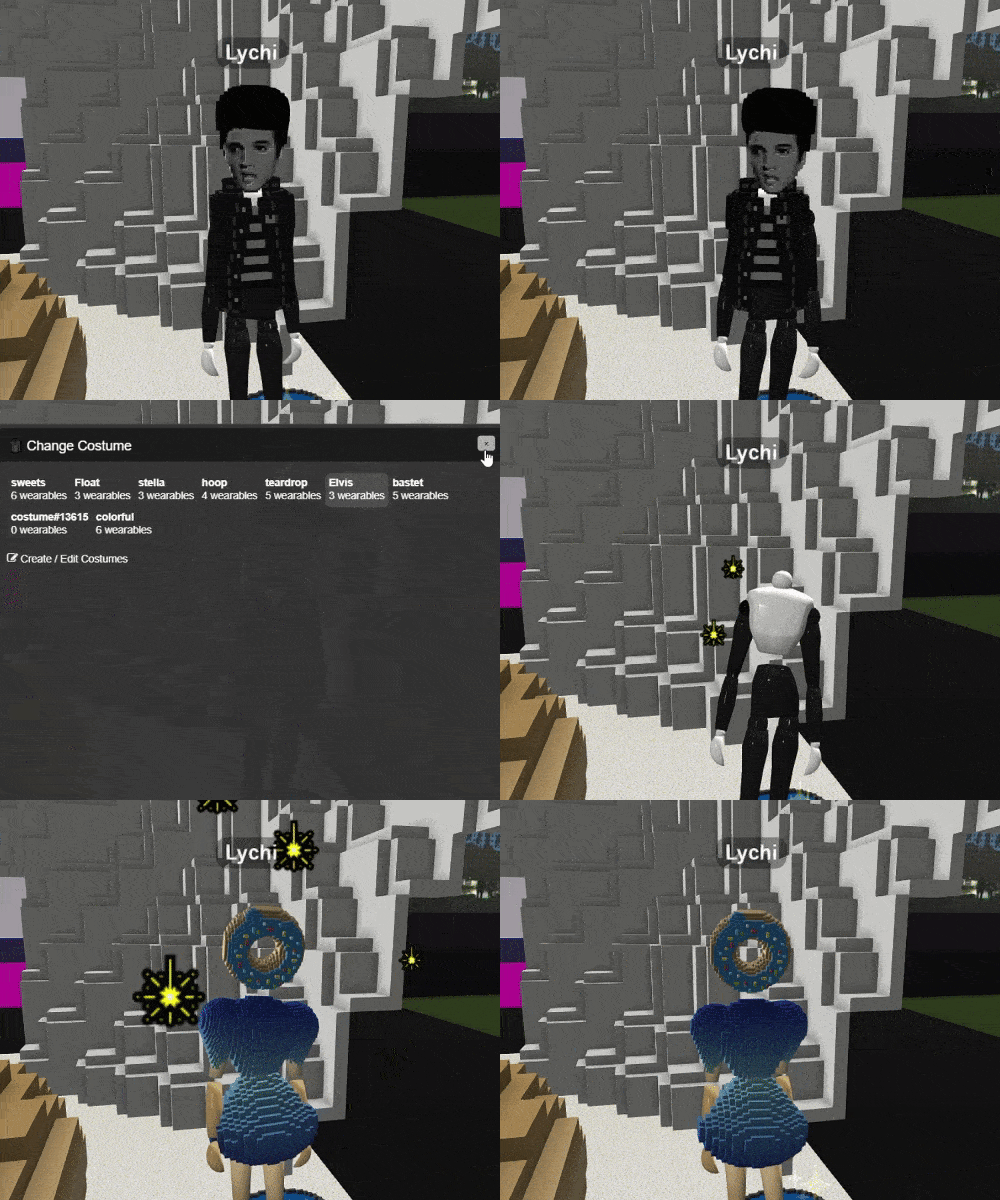
Hit C to put yourself in third person.
Changing on the Cryptovoxels website
Go to the Costumes tab and click the ✔ to the right of the costume you want to change to.

If it's highlighted and the ✔ button is grayed out, it's now your default costume.

After changing your default, refresh Cryptovoxels on your browser (F5).