How to make a Vox model
Cryptovoxels has a feature which allows imports of .vox and Mega-vox features. Have a look at the voxel library for examples of vox models. Here we will go over how you can make a .vox or a mega-vox model.
1. Get MagicaVoxel
MagicaVoxel is the software used to create .vox 3d models. It is frequently updated and Ephtracy, its creator, is fairly active and responsive.
- You can obtain it from: ephtracy.github.io
- Install the software.
2. Open Magica.
And set up your canvas.
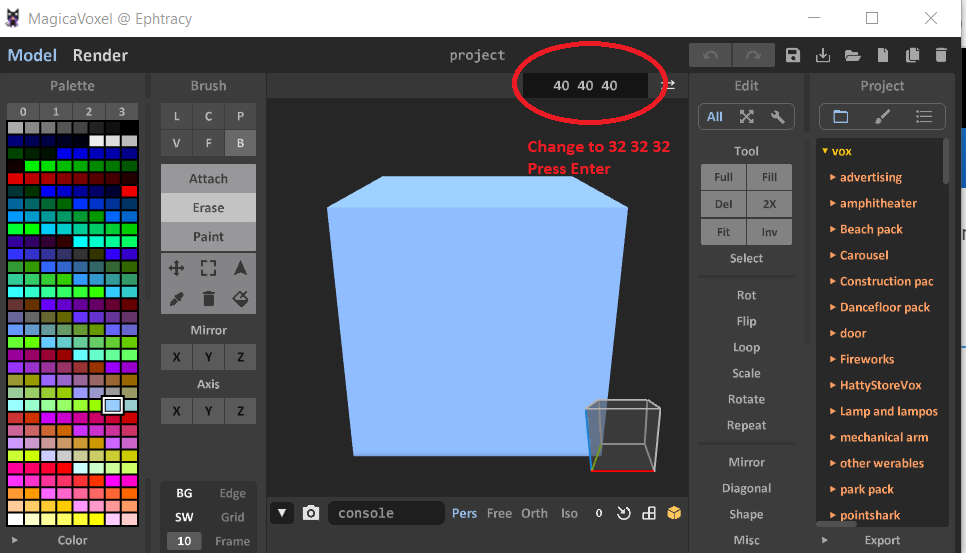
If you are making a normal .Vox file (for a .VOX feature) then the canvas has to be 32x32x32.
If you are making a Megavox feature then the canvas has to be 126x126x126.
You can change your canvas size like this:
3. Create your vox model.
Using the various tools of magica you can easily create your ideal vox model. The software has a lot of shortcuts that may require a bit of practice to get the hang of it.
Example of a vox model:

You can save it using the 💾 icon in the top-right menu.
4. Upload
There are several places you can save your vox-model on. The recommended platforms are:
- Cryptovoxels Discord server => #Files
- Pinata cloud (IPFS service)
- Slate (Open-source IPFS service)
- Dropbox
5. Get in-world and share your work
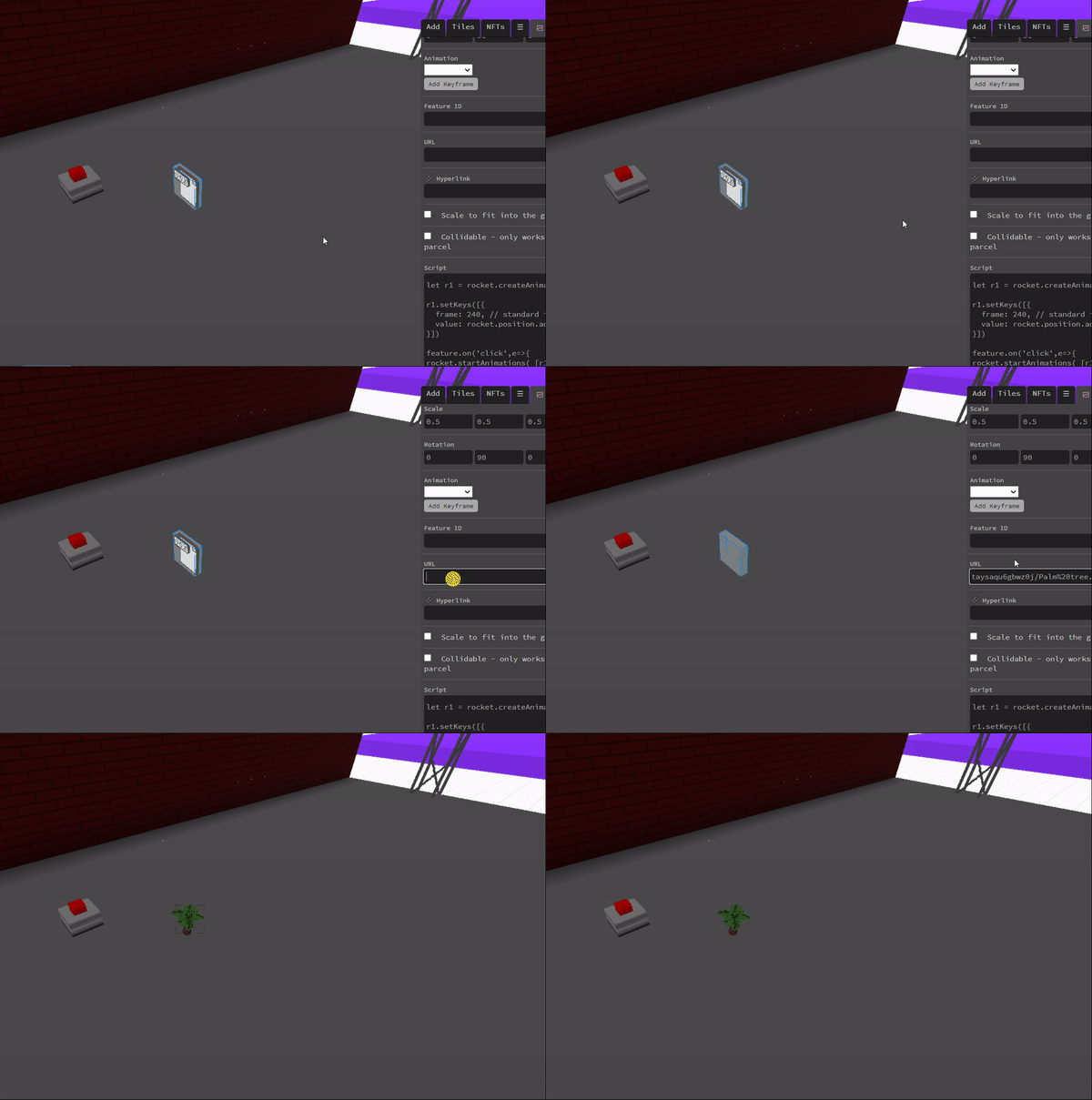
Go to your parcel and place a .vox or megavox feature down depending on the file you have.
And copy paste the shareable URL inside the 'URL' field.
Center of rotation
When using the rotation animation, you might notice that vox models don't really spin around their natural center.
For a vox model that is intended to be spun, you ought to place the center at a specific coordinate on the Magicavoxel canvas.
For a 32x32x32 vox model, use x:20 and y:15 as the true center of rotation.
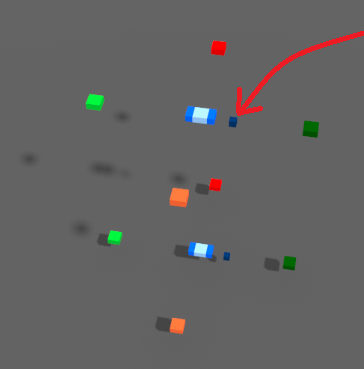
You can use this vox model to help you obtain the true center of rotation. In this model, the dark blue voxels represent the approximate center of rotation while the light blue represent the center.
An inconvenience with this method is it forces you to downsize your vox model.