Parcel ownership
Owning a parcel
You can change and control different aspects of your parcel after ownership. Click here to learn how to buy a parcel, and click here to learn about building in a parcel.
Your parcels
You can see the list of parcels you own by clicking Parcels on the nav bar, on the Cryptovoxels website.

A list of parcels that you own will be on the left side. From here you can click the name of the parcel to go on its page, or click Teleport to to check it out in Cryptovoxels.
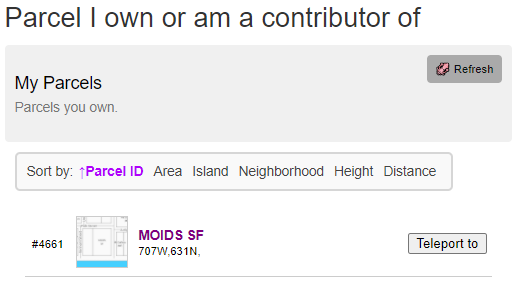
If you don't see a parcel you recently purchased, click the 🐙Refresh button.
Parcel's page
Each parcel gets a page that contains information about the parcel, as well as settings to adjust. To access your parcel's page, go here, then click the name of your parcel.
Updating the ownership
After you purchase a parcel, the ownership will need to get updated. You can do this by clicking the 🐙Update button on the parcel's page.

Parcel name & description
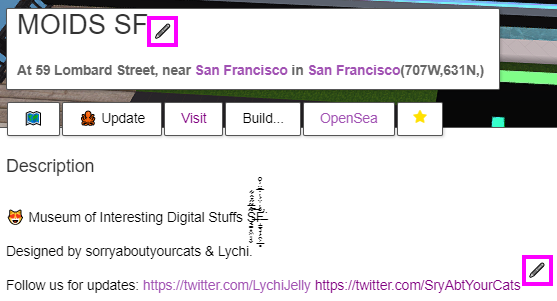
On your parcel's page (e.g. https://www.cryptovoxels.com/parcels/1) you can change your name and description. Click the the pen icon to the right of your parcel's name or under Description to modify this.
Building
Click the Visit button on your parcel's page to go to your parcel in Cryptovoxels. Learn how to build and place features / NFTs here.
Building template
You can also start with a template. On your parcel's page, click the Build... button and select a template.
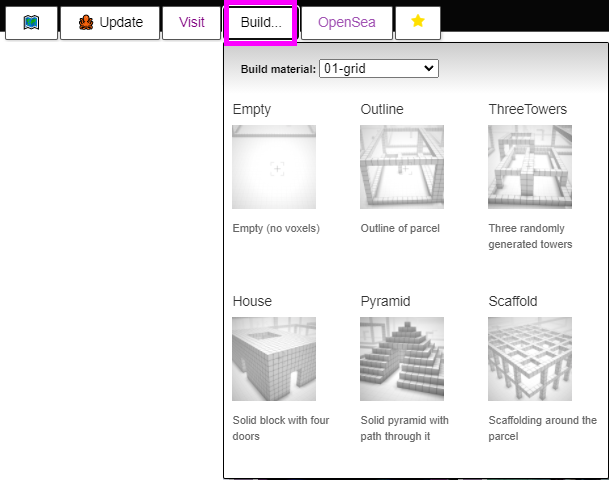
Building templates replace the entire parcel.
Collaborators
You can add collaborators to your parcel with two different sets of permissions: A Contributor can build on your parcel and Create events. A Co-Owner has the same rights as those of an Owner, except the ability to sell or transfer your parcel.
Adding a collaborator
To add a collaborator, go to your parcel's page and click the 🖊 under Collaborators.

Type in their address or .eth name and click the + button.

Adjusting the collaborator role
After adding the user, you can change their role from Contributor to Co-Owner.

Removing a collaborator
Click the pen in the collaborator section to modify your collaborators.

Click 🗑️ on the user to revoke access, or click 🗑️all to revoke everyone's access.

Collaborators CANNOT sell or trade your parcel.
Parcel admin
Sandbox mode
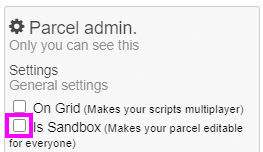
Sandbox mode makes your parcel editable for everyone. To turn this on, click the Is Sandbox checkbox in the Parcel admin settings on the right side in your parcel's page.
Events
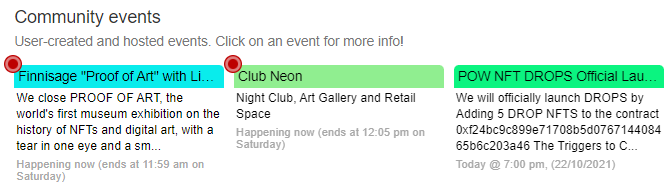
You can set up an event for your parcel! Parcel events automatically show up on the front page of the Cryptovoxels site and Explorer.
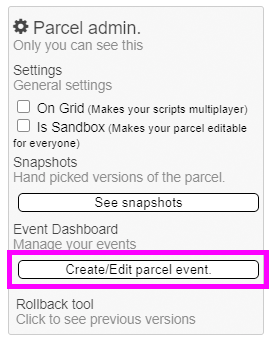
To create an event, go to your parcel's page and click the Create/Edit parcel event button on the right side, under Parcel admin.
A window will pop up asking for event details - fill those out.

All events that occur on your parcel are forever saved under Historic Events on the bottom of your parcel's page.

Have a great event!
Parcel labeling
You can label your parcel so others know what type of parcel it is, making it easier to find on the map. To change your parcel's label, click the dropdown under the Label section, select your label and click Save Label.

You can choose from one of the following labels: gallery, club, bar, teleports, library, park, animal, shops, scenic, beach, factory, sports, rest, education, game, music, money, concert & food.
Parcel snapshots
Snapshots are user-selected states of your Parcel that you can chose to come back to later. Use this to backup (take snapshot) & restore (revert) your Parcel during major changes or to swap your Parcel around for events.
If you prefer to work with snapshots within Cryptovoxels itself, you can! Click here to learn how.
See available snapshots
You can also view the list of snapshots and revert to a different state from your Parcel's page. (e.g. https://www.cryptovoxels.com/parcels/1)

Taking a snapshot
On the Snapshots page of your parcel (e.g. https://www.cryptovoxels.com/parcels/1/snapshots), click Take snapshot.

Restoring a snapshot
On the Snapshots page of your parcel, click Revert to snapshot on the snapshot you want to revert to.

Version management
You can see changes to your parcel, download different versions of your parcel and revert your parcel to a time in the past from here. To access Version management, click View/Edit parcel content under the Parcel admin section.

Parcel history
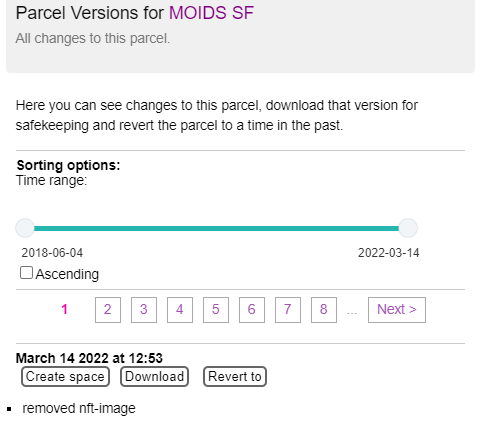
Under each timestamp, you can see what was changed on the parcel. You can also alter the time range to help with sorting.
Reverting back in time
You can revert your parcel back to a later time. Click the Revert to button under the timestamp of the version you'd like to revert back to.

Backup parcel (JSON)
You can download a backup of your parcel as a JSON file. Under Parcel version management, on the left side click Download on the version you would like to backup and save it.

You can also use snapshots to backup and restore your parcel.
Restore parcel (JSON)
You can restore your parcel by loading the JSON back. In Parcel version management, under Import on the right side, click the Choose File button and select the JSON file.
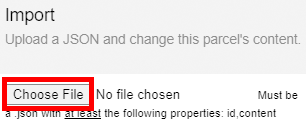
The JSON file must be a .json with at least the following properties: id, content.
Validation rules: Features outside parcel feature bounds will be removed. Imported parcel/space should be of the same size as the in-world parcel. Features have to have valid types and valid data.
Parcel to space
Spaces are free plots of land off-grid that are building volumes similar to parcels and are an excellent way to experiment. Head over here to learn how to convert your parcel to a space.
Space to parcel
You can convert a space to a parcel, as long as the dimensions are the same. Head over here to learn how.
Danger zone
You can clear all the history of the parcel via the Danger zone. This is useful if you're selling your parcel and you don't want the new owner to have access to your work, or if you want to clean up your history.
Scroll down and click the Clear parcel history button to erase your parcel history.
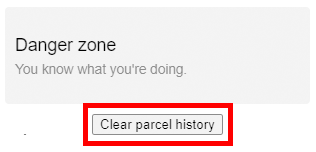
Clicking Clear parcel history will completely delete all non-snapshot versions of your parcel. This process cannot be reversed - once cleared, there is no way to get the history back.